
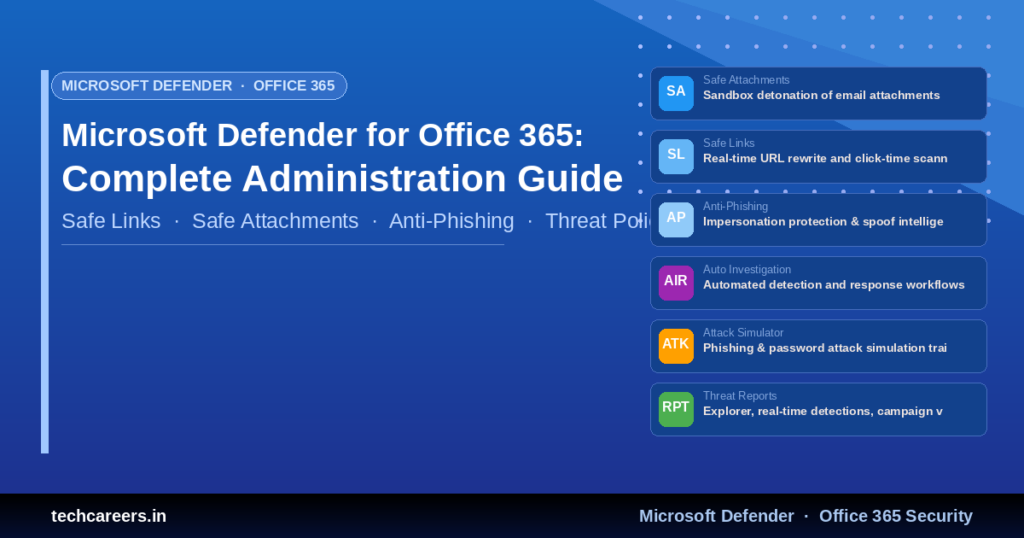
Microsoft Defender for Office 365: Complete Administration Guide
🔒 MDO and How It Works with EOP
💡 Overview
Exchange Online Protection (EOP) is the built-in filtering layer included with every Exchange Online mailbox — it handles anti-spam, anti-malware, and connection filtering. Microsoft Defender for Office 365 adds advanced capabilities on top: Safe Links (time-of-click URL scanning), Safe Attachments (detonation sandboxing), anti-phishing with impersonation protection, Threat Explorer, and Automated Investigation and Response. Mail flows through EOP first, then MDO policies apply.
⚡ Zero-Hour Auto Purge (ZAP)
✅ How ZAP Works
- ZAP retroactively removes malicious emails that were already delivered to mailboxes
- When Microsoft’s threat intelligence identifies a message as spam, phishing, or malware after delivery, ZAP moves it to Junk or Quarantine automatically
- Works on unread messages in Exchange Online mailboxes — no admin action required
- Actions follow the verdict in your anti-spam and anti-malware policies
🤖 Automated Investigation and Response (AIR)
💡 What AIR Does
AIR (available in Defender for Office 365 Plan 2) automatically investigates well-known threats — a user-reported phish, a malware detection, a suspicious click — and produces recommended remediation actions such as soft-deleting messages or blocking URLs. An admin reviews and approves the actions in the Action Center, keeping humans in control while cutting investigation time dramatically.
🎣 Responding to Bulk Phishing — Search and Delete
Identify the Campaign
Use Threat Explorer in the Defender portal to find all recipients by sender, subject, or URL. For 6,000+ message campaigns, export the affected recipient list.
Purge with Content Search or Threat Explorer
Take direct action from Threat Explorer (soft delete), or use Security & Compliance PowerShell for large-scale purges.
Connect-IPPSSession

# Create a search for the phishing campaign
New-ComplianceSearch -Name "PhishPurge" -ExchangeLocation All -ContentMatchQuery ((subject:"Invoice Overdue") AND (received:today))

Start-ComplianceSearch -Identity "PhishPurge"

# Soft delete all matches
New-ComplianceSearchAction -SearchName "PhishPurge" -Purge -PurgeType SoftDelete
✉️ SPF, DKIM, and DMARC
| Record | What It Does | DNS Record Type |
|---|---|---|
| SPF | Lists which servers are allowed to send email for your domain | TXT on the root domain |
| DKIM | Cryptographically signs outgoing messages so recipients can verify integrity | Two CNAME selector records |
| DMARC | Tells recipients what to do when SPF/DKIM fail (none, quarantine, reject) and sends reports | TXT on _dmarc subdomain |
⚠️ Hard Fail vs Soft Fail in SPF
- Soft fail (~all): Unauthorised senders are marked suspicious but usually still delivered — recommended while onboarding or for new organisations still discovering all their legitimate senders
- Hard fail (-all): Unauthorised senders should be rejected — use once you are confident every legitimate sending source is in the SPF record
👤 Impersonation Protection for Executives
💡 Configuration
In the anti-phishing policy (Defender portal → Email & collaboration → Policies → Anti-phishing), enable user impersonation protection and add up to 350 high-value users (CEO, CFO, executives). Also enable domain impersonation for your own and partner domains, and mailbox intelligence so machine learning detects unusual senders posing as known contacts.
📥 SCL -1 and Safe Senders
✅ What SCL -1 Means
A Spam Confidence Level of -1 means the message skipped spam filtering — it came from a safe sender, a trusted recipient, an allowed IP, or a transport rule that set SCL to -1. The message is delivered straight to the inbox. This is also how “bypass spam filtering” transport rules for trusted partners work.
🚚 Advanced Delivery
💡 When to Use It
Advanced Delivery (Defender portal → Policies → Advanced delivery) tells filtering to deliver phishing simulations and SecOps mailbox messages unfiltered without weakening protection for everyone else. Use it for third-party phishing simulation platforms and dedicated security operations mailboxes — never for ordinary partner mail (use allow entries or transport rules for that).
🚫 Creating a Spam Filter Exception (Tenant Allow/Block List)
⚠️ Common Interview Scenario
“The detection technology shows ‘spam filter’ on a quarantined message, and we don’t want this specific sender quarantined — where do you create the exception?” This is a Tenant Allow/Block List scenario, not a transport rule — allow entries are the Microsoft-recommended way to override a specific spam filter verdict without disabling filtering tenant-wide.
✅ Where to Configure It
Defender portal → Policies & rules → Threat policies → Tenant Allow/Block List → Domains & addresses tab → add the sender as an allow entry. Unlike a transport rule that sets SCL -1 tenant-wide, allow entries in the Tenant Allow/Block List are scoped, auditable, and expire automatically after 30 days by default (extendable), which avoids permanent blind spots in spam filtering.
💡 Best Practices & Recommendations
- Deploy preset security policies (Standard/Strict) instead of hand-tuning every setting
- Publish SPF, DKIM, and DMARC for every sending domain — start DMARC at
p=none, review reports, then move to quarantine/reject - Add all executives to impersonation protection and enable mailbox intelligence
- Use Threat Explorer weekly to review campaigns targeting your tenant
- Prefer the Tenant Allow/Block List over transport rules for sender exceptions — entries expire automatically
- Enable user-reported message settings so employees can report phish directly to your SecOps mailbox
🎓 Common Interview Questions
~all) asks receivers to mark unauthorised mail as suspicious but still accept it; hard fail (-all) asks them to reject it outright. A new organisation should start with soft fail while it discovers all legitimate sending systems (marketing tools, printers, apps), then move to hard fail once the SPF record is complete.-Purge -PurgeType SoftDelete. (4) Check who clicked using URL click data, reset credentials and revoke sessions for affected users. (5) Let AIR investigate related messages, and review why the filter missed it.📚 References & Further Reading
- 🔗 Microsoft Defender for Office 365 overview — Microsoft Learn
- 🔗 Zero-hour auto purge (ZAP) — Microsoft Learn
- 🔗 Email authentication: SPF, DKIM, DMARC — Microsoft Learn
Explore More Microsoft Defender Resources
Continue learning with our complete Microsoft Defender XDR administration guide, course modules, and interview preparation resources.