
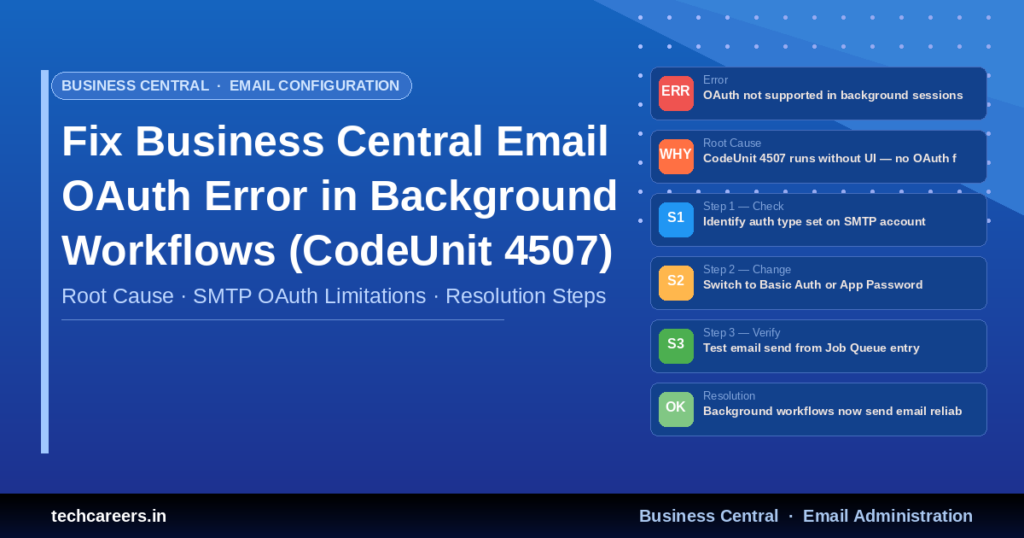
Resolving Business Central Email OAuth Error in Background Workflows (CodeUnit 4507 – TryGetAccessTokenInternal)
This article explains why the failure occurs and provides a reliable, Microsoft-recommended configuration to resolve it.
⚠️ The Symptoms / Error Message
⚠️ Error Stack Trace
While triggering a workflow notification or job queue email, the following stack trace appears:
"Email - OAuth Client"(CodeUnit 4507).TryGetAccessTokenInternal
"Email - Outlook API Helper"(CodeUnit 4509).Send
"Email Dispatcher"(CodeUnit 8888).SendEmail
"Notification Entry Dispatcher"(CodeUnit 1509)
"Job Queue Dispatcher"(CodeUnit 448)
💡 Key Observations
- ✅ Test emails from Business Central work successfully
- ❌ Workflow notifications fail
- ❌ Issue impacts only one specific user or scenario
- ❌ Switching to SMTP does not immediately resolve the issue
- ❌ Same failure occurs with Basic Auth and OAuth 2.0 configurations
🧠 Root Cause
💡 Why Background Sessions Cannot Use OAuth
OAuth (Modern Authentication) requires an interactive user context (On-Behalf-Of flow) to acquire tokens. Workflow notifications and Job Queue executions run in background sessions where no interactive login is available and no token acquisition prompt can occur.
⚠️ Result
OAuth-based email accounts cannot be used in background processes like workflows in Business Central. Even after configuring SMTP, the system may still use the previously assigned OAuth email connector for workflow scenarios, causing persistent failures.
🛠️ Step-by-Step Resolution
Create an SMTP Email Account (Basic Authentication)
Configure a dedicated SMTP account in Business Central to handle background email scenarios.
✅ Steps — Business Central Admin
- Navigate to Email Accounts in Business Central
- Click New and select SMTP as the account type
- Configure the settings in the table below
- Click Test Email Setup and confirm success without OAuth errors
| Setting | Value |
|---|---|
| SMTP Server | smtp.office365.com |
| Port | 587 |
| Secure Connection | ✔ Enabled (TLS/SSL) |
| Authentication Type | Basic |
| Username | user@yourdomain.com |
| Password | App Password or User Password |
⚠️ MFA Consideration
If MFA is enabled on the account, you must generate an App Password from Microsoft 365 Security settings to use as the SMTP password.
Assign SMTP Account to Workflow / Notification Scenario
Override the OAuth assignment so Business Central uses SMTP for background operations.
✅ Email Scenario Assignment
- Search for Email Scenario Assignment in Business Central
- Locate scenarios: Workflow Notifications and Approvals
- Replace the assigned account: ❌ Microsoft 365 / Current User (OAuth) → ✅ new SMTP account
- If no specific scenario exists, set the SMTP account as the Default Email Account
Re-Test Workflow Execution
Confirm the fix by triggering a real workflow and verifying delivery.
✅ Validation Steps
- Trigger a workflow (e.g., Purchase Order Approval)
- Verify email is delivered successfully
- Confirm no OAuth-related errors appear in logs or notifications
Validate Email Telemetry (Recommended)
Check Application Insights telemetry to confirm SMTP is now being used instead of OAuth.
💡 What to Look For
- ✅ Category should show: Email SMTP
- ❌ Should NOT show: EmailOAuth
💻 PowerShell Validation (Microsoft 365 Email Readiness)
While Business Central configuration is UI-based, validate the M365 mailbox SMTP readiness using Exchange Online PowerShell:
Connect-ExchangeOnline -UserPrincipalName admin@yourdomain.com

# Verify mailbox exists
Get-Mailbox -Identity user@yourdomain.com

# Check authentication policies
Get-AuthenticationPolicy | Format-Table Name,AllowBasicAuthSmtp

# Validate SMTP AUTH is enabled for the mailbox
Get-CASMailbox -Identity user@yourdomain.com | Select-Object SmtpClientAuthenticationDisabled

# If disabled, enable SMTP AUTH
Set-CASMailbox -Identity user@yourdomain.com -SmtpClientAuthenticationDisabled $false
💡 Best Practices / Recommendations
- Use SMTP with App Passwords for all background processes — workflows, job queues, and scheduled tasks
- Always assign dedicated email accounts per scenario rather than relying on “Current User” to avoid user-context dependencies
- Regularly review SMTP AUTH usage and disable it at the org level — enable only per mailbox where needed
- Avoid OAuth for non-interactive processes in Business Central — it is incompatible by design
📚 References & Further Reading
- 🔗 Set up email in Business Central — Microsoft Learn
- 🔗 Authenticated client SMTP submission (SMTP AUTH) — Microsoft Learn
- 🔗 Modern Authentication for Microsoft 365 — Microsoft Learn
✅ Key Takeaway
If workflow emails fail but manual emails succeed in Business Central, the issue is almost always OAuth being used in a background context. Switching to SMTP with Basic Authentication and properly assigning the email scenario resolves the issue reliably.